HOW TO USE A PASSWORD MANAGER (SENIOR-FRIENDLY GUIDE)
WHAT YOU’LL LEARN
- What a password manager is and why seniors benefit from one
- How to set up a password manager step-by-step
- How to save, autofill, and organize passwords
- Safety tips for seniors and caregivers
WHY PASSWORD MANAGERS HELP SENIORS
Password managers make life easier by:
- Remembering all passwords for you
- Creating strong, safe passwords automatically
- Reducing stress and confusion
- Helping caregivers support loved ones safely
WHAT IS A PASSWORD MANAGER?
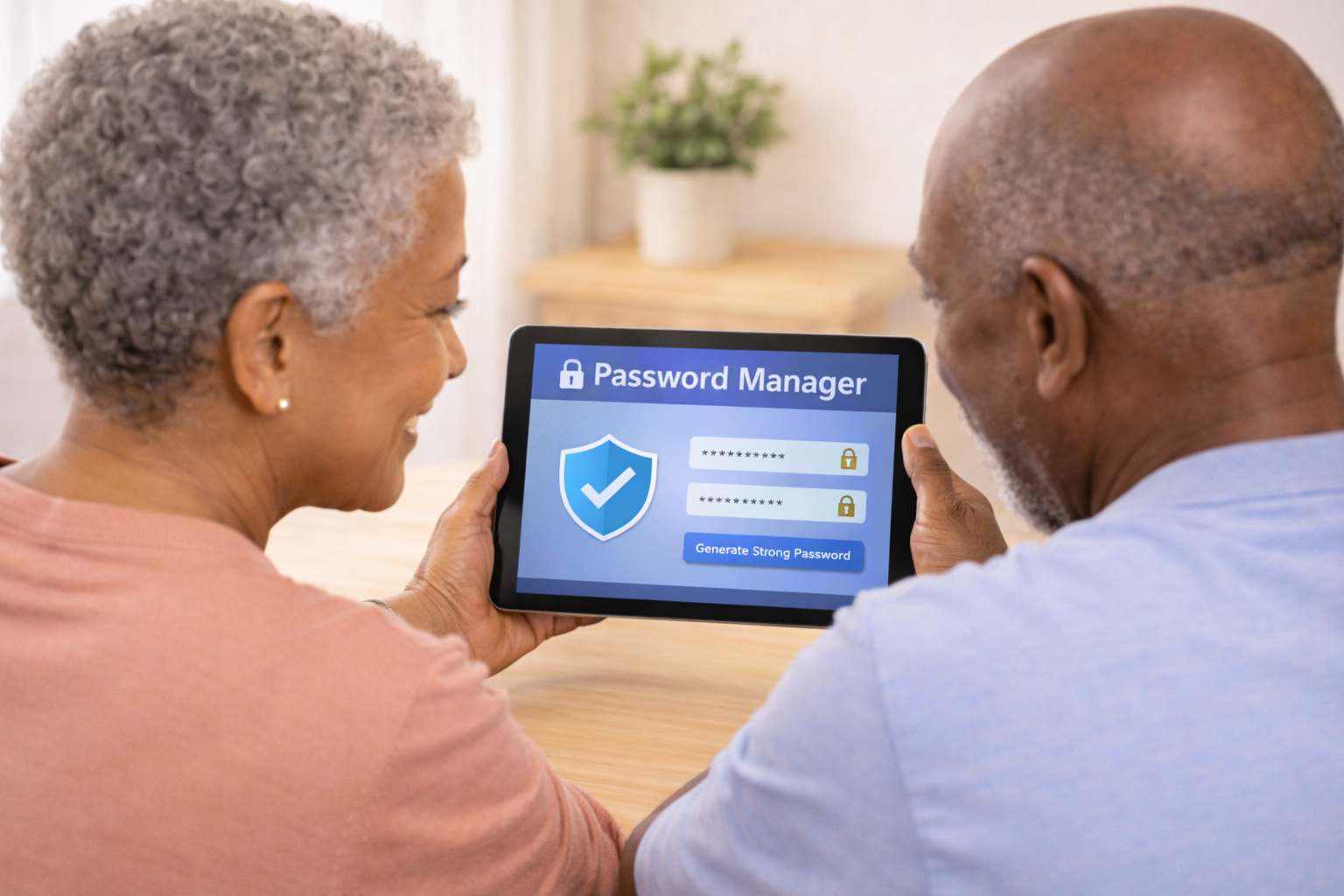
A password manager is a secure app that:
- Stores all your passwords in one safe place
- Lets you log in with one master password
- Fills in passwords automatically
- Works on phones, tablets, and computers
Examples:
- 1Password
- Bitwarden
- Dashlane
- LastPass (free version available)
STEP-BY-STEP: SETTING UP A PASSWORD MANAGER
- Choose a password manager
Pick one that fits your needs. Bitwarden is simple and senior-friendly. - Create your master password
- Use a long, memorable phrase
- Example: “SunnyLakeWalksEveryMorning”
- Write it down and store it safely
- Install the app
- Download on your phone, tablet, and computer
- Sign in using your master password
- Add your first password
- Tap “Add Item” or “New Login”
- Enter the website, username, and password
- Save it to your vault
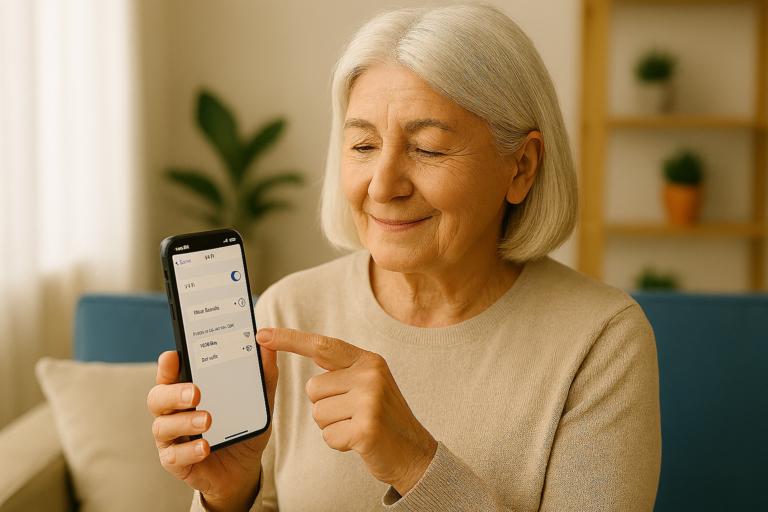
- Turn on autofill
- iPhone: Settings → Passwords → AutoFill Passwords
- Android: Settings → Passwords & Autofill
This lets the app fill in passwords for you automatically.
- Save passwords as you go
When you log in to a website, the app will ask:
“Save this password?”
Tap Yes to store it safely.
HOW TO USE YOUR PASSWORD MANAGER
- Open the app to see all your logins
- Tap a website to copy your password
- Use autofill to log in without typing
- Let the app create strong passwords for new accounts
SAFETY TIPS FOR SENIORS
- Never share your master password
- Turn on two-factor authentication
- Keep your device locked with a PIN or fingerprint
- Let a trusted caregiver help with setup
- Avoid writing passwords on paper near your computer
FAQS
Q: What if I forget my master password?
A: Most apps cannot reset it — choose a phrase you’ll remember.
Q: Is it safe to store all passwords in one place?
A: Yes — password managers use strong encryption to protect your data.
Q: Can caregivers help manage passwords?
A: Yes — some apps allow shared vaults for families.
Q: Does it work on all devices?
A: Yes — phones, tablets, and computers.
WANT SIMPLE TECH TIPS EACH WEEK?
Join the Senior Easy Tech email list for easy, step-by-step
guides that help seniors stay safe, confident, and connected.
Looking for more helpful guides?
👉 Browse All Categories: